Material Components are a set of UI components that helps you build Android apps with Material Design.
In this post, I’ll cover every Material Design component available to us. In addition to components, popular design patterns can be recreated as well. That too, quite easily. For example, the ‘Collapsing App Bar on scroll’ (Read as Flexible Space with Image Pattern).
Moreover, I’ll tell you how to use each Material Component with links to detailed Android tutorials.
Many Android and iOS apps have horizontal scrolling lists. Maybe it’s also combined inside a vertical list. But is it necessary? Even assuming it is, are you doing it right?
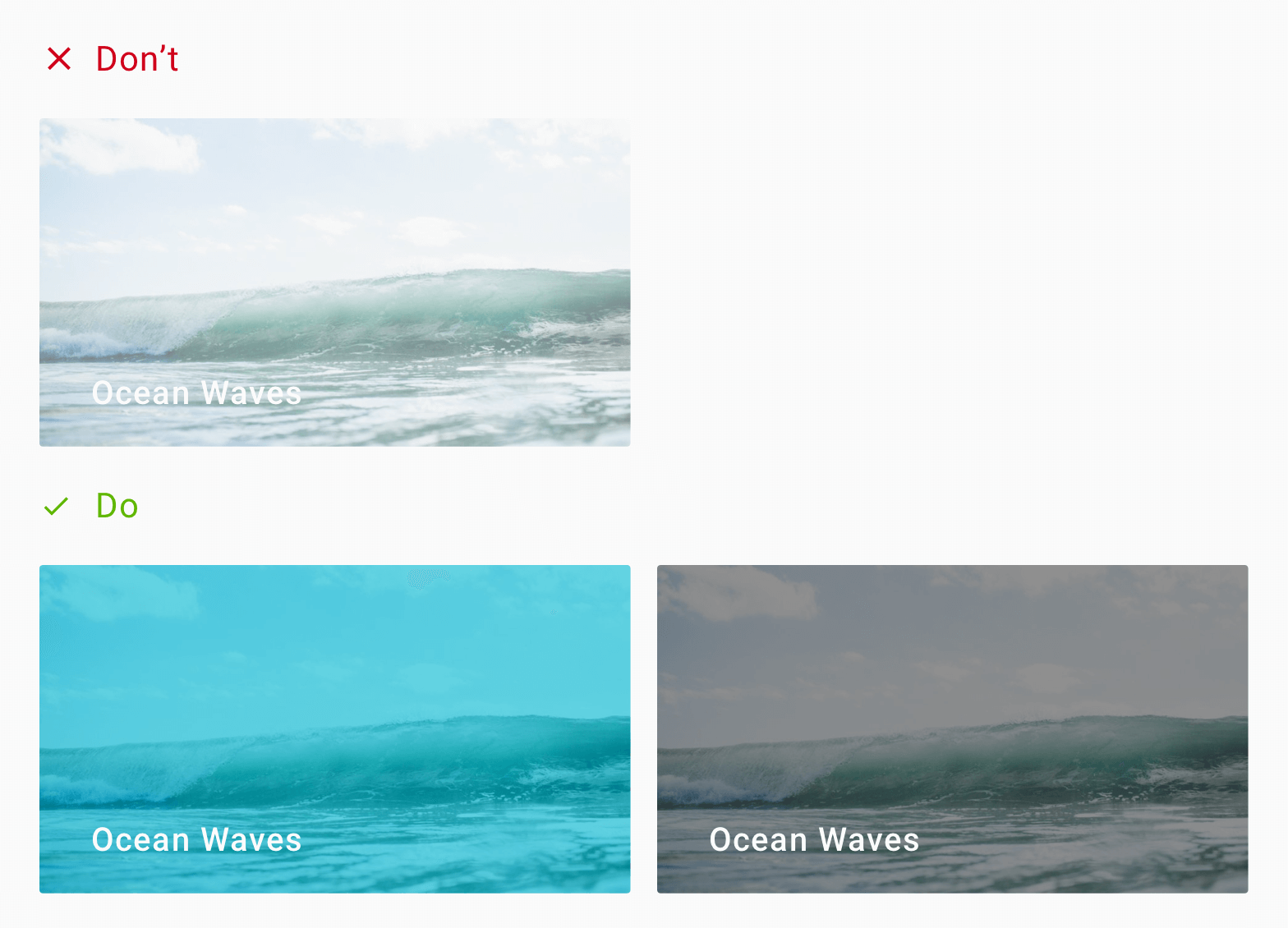
It’s become popular to overlay text labels on background images. But the image could be anything. How does your user interface design accommodate that? Can text overlay remain readable always?
The last thing you’d want is your users straining to read such text. This is all the more important on mobile. Smaller screens and smaller text make it slightly harder to read.
But don’t worry. There are a couple of design techniques you can follow to ensure that.
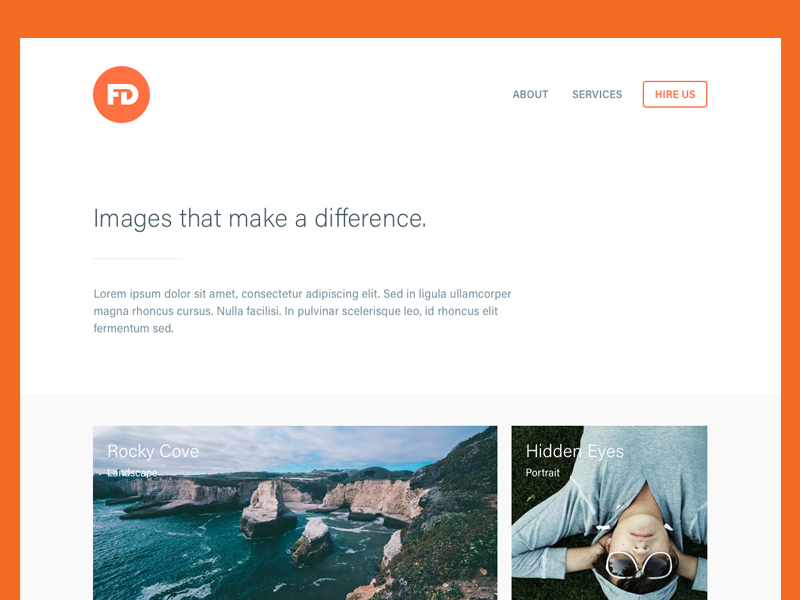
First, let me show you some design mockups that use text overlay.
Photography Portfolio by Winart Foster on Dribbble
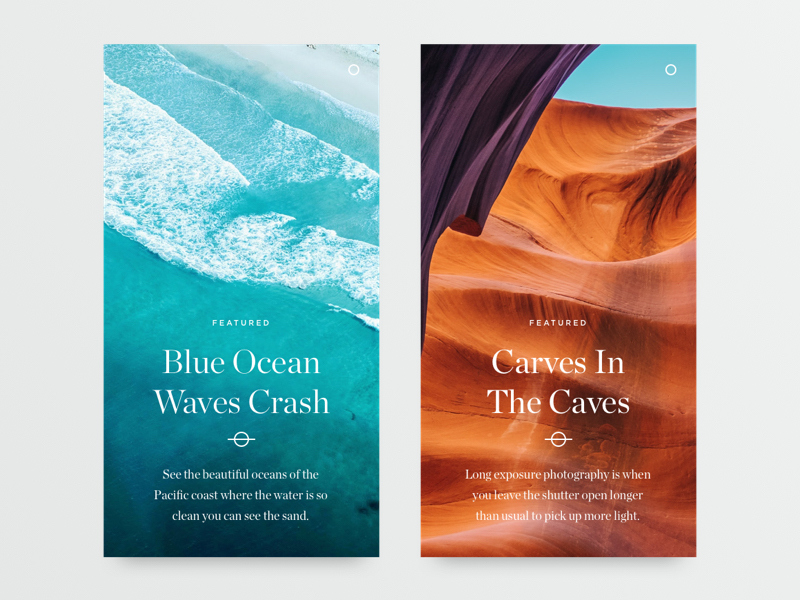
Here’s another.
Article Cards Alternate by Oliur on Dribbble
A good eye will immediately notice the problem with these two designs. Take the second one with the sea waves. If the wave foam was on the lower half of the image, would that text be readable?
Let me try to recreate that design for you.
Text with scrim overlay
How readable is the text now?
Alright, its not the same picture. But it’s still ocean waves.
The background image is outright disturbing. But the image is not to blame. After all, when you decide to overlay text, you must be ready for ANY image. Which means, the image could be anything.
Good design is when we factor in all possible scenarios.
Now don’t get me wrong. Those 2 designs are not bad in any way. In fact, I love the typography used in the second one. Both are well-designed interfaces by talented people. It’s just that, some interface designs (mockups) are only for aesthetic purposes.
Anyone who translates them into a working project will immediately recognize what’s wrong. The text displayed, does not account for its background images.
However these mockups are only examples. It assumes that whatever be the image, the text will be readable. But my design attempt just showed you that that’s not the case.
The 2-in-1 problem with text overlay
Now we could say that this pattern became overly popular thanks to Card design. I mean, most of the card designs include an image, with text overlaid on top. Not to say that its bad, but there are two things that are largely not considered.
When you overlay text on an image, you sacrifice two things:
Image clarity
Text readability
Readability is the ease with which a reader can understand a written text. It is a measure of how easily a reader can distinguish individual letters or characters from each other. – Wikipedia
Overlaying a text prevents viewing the image completely. Moreover, your text may not be readable.
The image can be anything
Now, most of the examples above are mockups. Which means those are ideal scenarios. The text matches perfectly against its background. Things can immediately go wrong if your using white text over a whitish or light image. The same holds true for black or darker tones.
Now we know the mess we’re getting ourselves into. So let’s look at what we can do about it.
Text Overlay Solutions
There are different approaches to making our overlay text readable. I want you to understand that these are different solutions to a single problem. There is no single solution answer.
Moreover, deciding on what to use ultimately boils down to your personal preference. Or you can even decide upon one, depending on what fits your brand style.
1. Using a Scrim
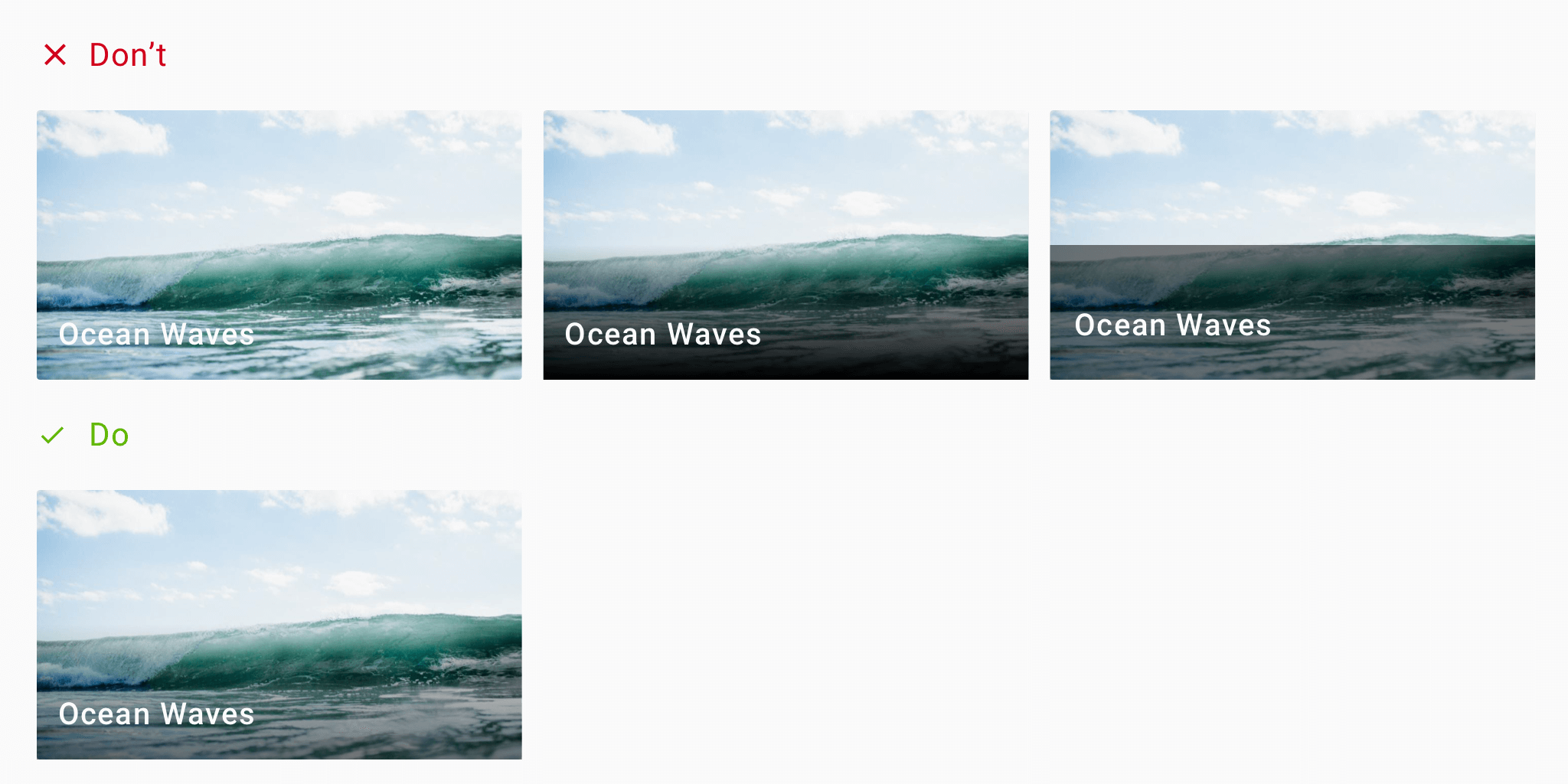
A Scrim is a semi-transparent gradient layer that helps Text appear more readable against backgrounds.
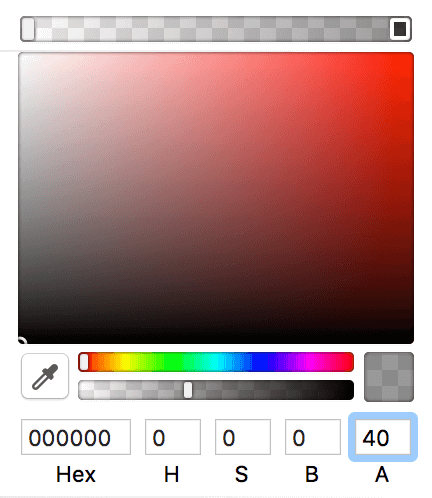
A scrim is a solid to a transparent gradient that sits behind a Text Label. So for instance, your text label could be a constant white. Then, your scrim would be a gradient going from, say 40% black to transparent.
I leave the opacity percentage to you. Again that’s a matter of personal taste.
But a 40% black to transparent works really well. It’s not too evident and doesn’t disturb the image. It fades smoothly, giving the text label the contrast it needs, making it readable.
Scrim – gradient overlay
Recommended Scrim guidelines:
40% opacity
gradient settings
height: 50% of image height
These are not hard rules. But as you can see from the above design, these settings work well.
By far, using a scrim is the most popular solution for solving the text overlay issue with images.
But wait, don’t go yet! There are other solutions which might suit your taste better.
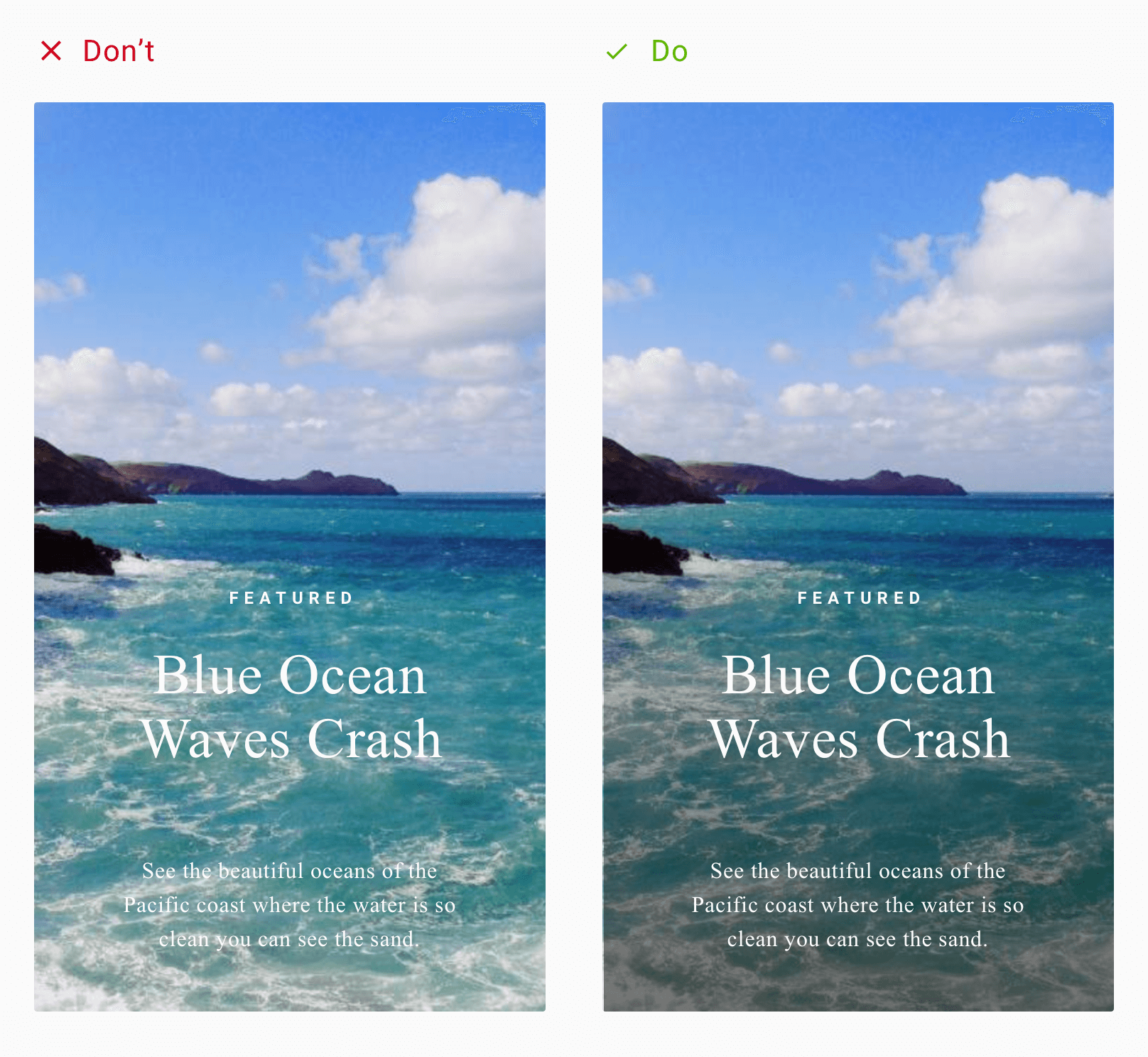
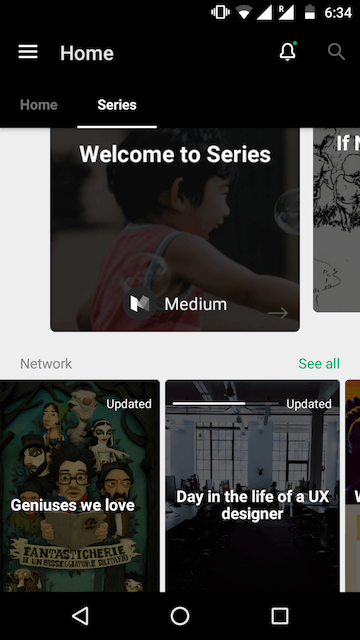
2. Overlay the entire image
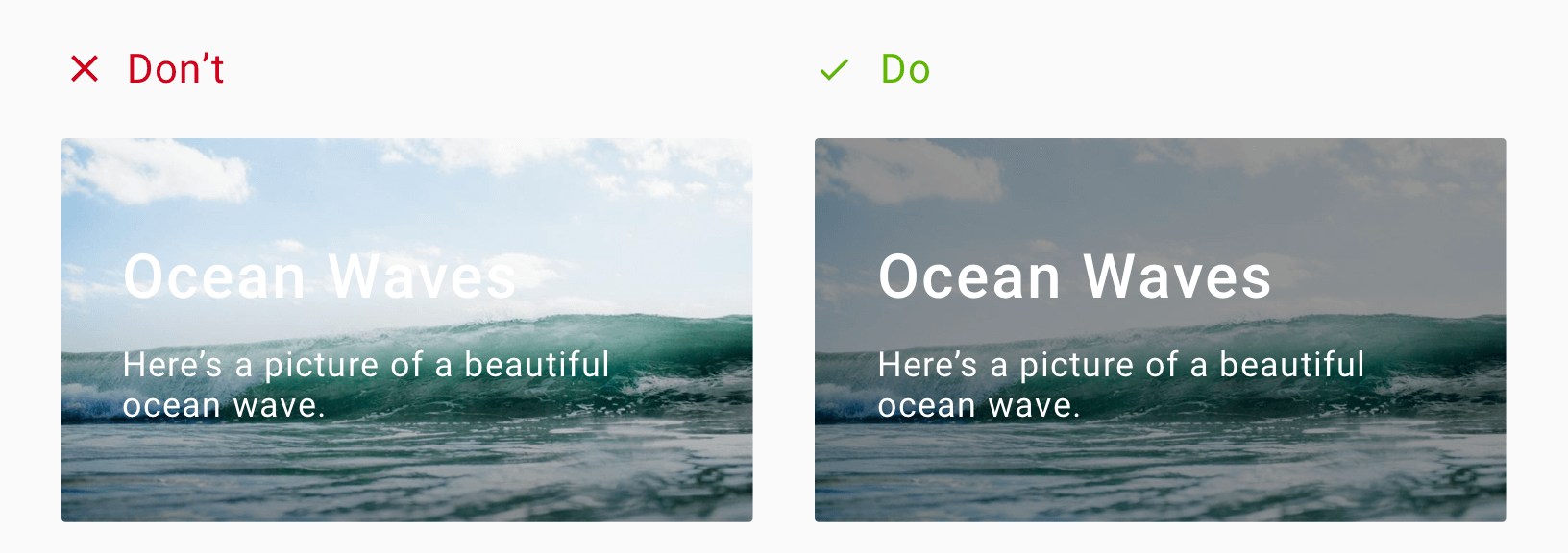
Like the scrim solution, and instead of a gradient, you’d apply a full 40% black to the whole image.
That’s right. Maybe the image isn’t important to you. The text label is your priority. Or maybe the text covers the entire image’s size.
In such a situation, using a scrim doesn’t make sense. Since the scrim is a gradient, your text becomes unreadable half-way across.
So since the text covers the whole image, the solution is to darken the entire image.
In short, that’s a 40% opacity black on the image.
Advantages:
Useful for large text (headings?) that covers the entire image
When text is your priority and not the image
Disadvantages:
Can obscure the entire image
Could sacrifice image visibility
Can diminish the background image as if it exists only for aesthetics
Here are some popular apps that use this approach:
Medium Series on Android
85000+ Status and Quotes 2017 Android App by Pratik Butani
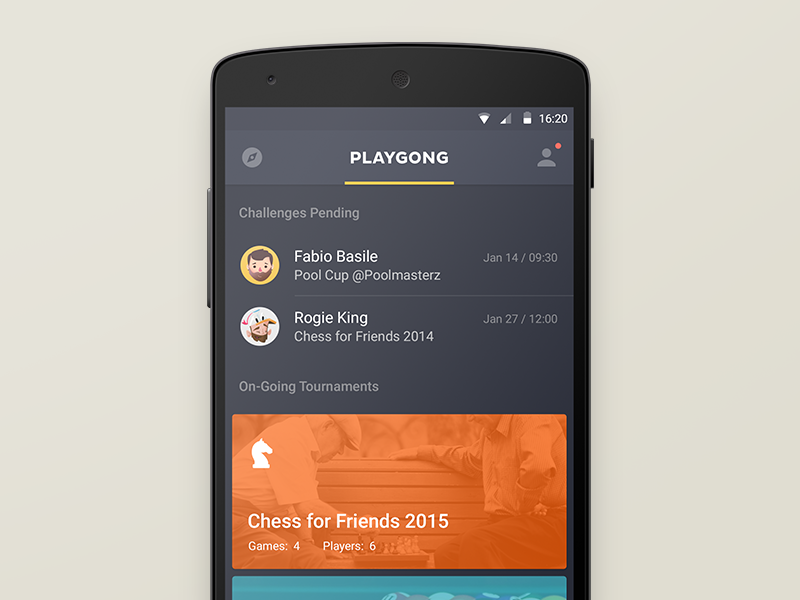
3. Color Overlay
This is like an overlay. But instead of using black or white to darken or lighten the image, we use a different color.
Setting a color overlay on an image is the perfect way to neutralize a busy image. It blocks out all the different colors, making the image monotone.
Here is an example.
Usually, the color of choice is the brand color.
Playgong App by Deividas Graužinis
If you have trouble deciding color, check out Canva’s Color Wheel Tool. It uses color theory and color combinations in design to help you find colors that look good together!
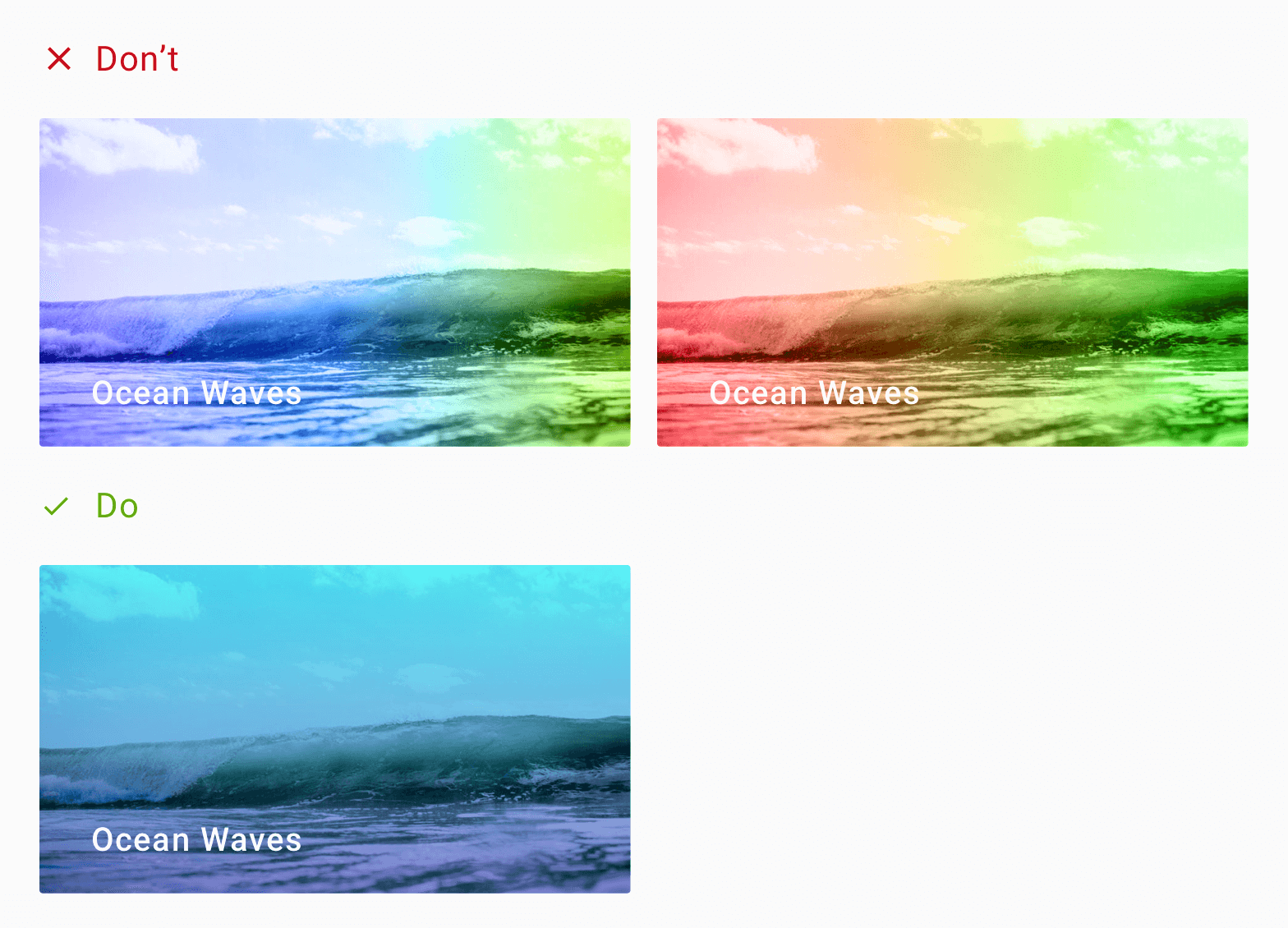
4. Soft gradients
Remember that to use this correctly, your text should have enough contrast.
Also, when you use gradients, don’t use visually jarring colors. Chose colors that work together in harmony.
You can use web tools such as Coolors and Kuler by Adobe. These can help you generate color pairs that work well together.
Here’s an example.
Web Agency by Mohammad Shohag
Advantages:
Better brand emphasis (if brand color used)
Single color tone allows room for better text contrast
Disadvantages:
Not suitable for pictures of people as it may not be recognizable
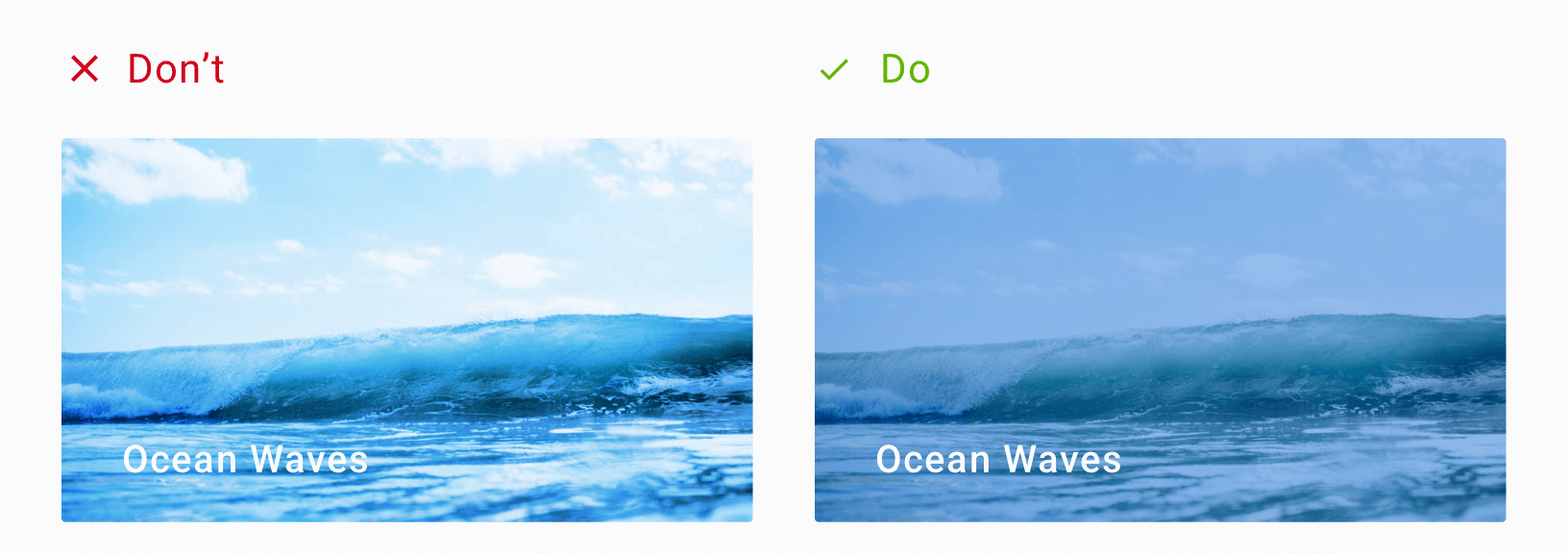
5. Semi-Transparent Image
This technique involves using a semi-transparent image against a solid color background. It helps ‘calm’ the noisy background, so the text can stand out.
The technique consists of 3 layers (from the bottom):
Bottom – solid color
Middle – semi-transparent image (40% opacity)
Top – Text layer
Advantages:
Softer image allows text to stand out
Makes image monotone, reducing image noise
Disadvantages:
Image may lose important details
Only suitable for images whose purpose is eye candy
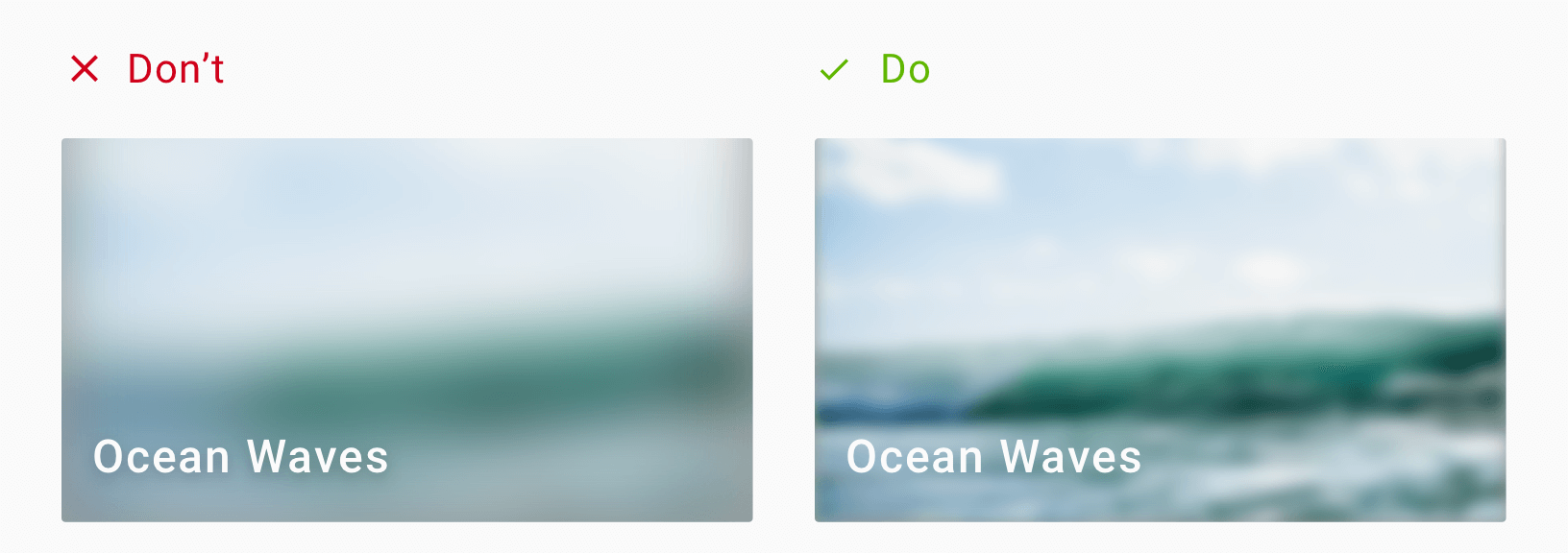
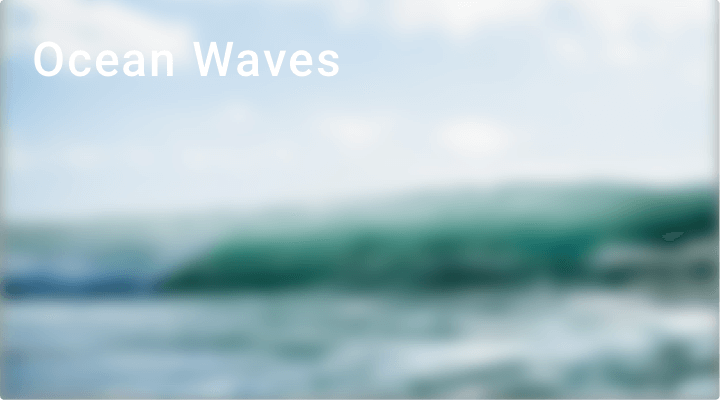
6. Blur
Applying a Gaussian blur softens an image allowing text to become more readable.
Smoothing of images by reducing image noise and detail – Gaussian Blur
iOS folks will be familiar with this technique. iOS design principles use blur to denote depth. Whereas Android (Material Design) uses shadows to denote depth (elevation).
Here’s a 16px blur on the left, and 4px blur on the right. Make sure you don’t blur the image too much that the underlying image is completely unrecognizable!
Blur doesn’t solve same text and image color problem
Advantages:
Helps reduce the ‘busyness’ in images
Softened images allow text to stand out
Disadvantages:
Completely sacrifices the image for text
Still doesn’t solve same-color overlay issue
May not suit your product style. Using blur in a Material Design world?
7. Text Highlight
Here, we apply a background color to the text itself. This effect mimics the traditional way of highlighting text on paper.
Text with Highlighter effect
This technique works well when the design has minimal text and a spacious background.
Remember that the highlight color doesn’t always have to be black. The example on the right borrows the dominant color from the image. This creates a higher sense of belonging with the image.
Advantages:
Good text clarity against any background image
Good contrast
Disadvantages:
Choice of highlight color may make text feel disconnected from image
Can completely block the underlying image
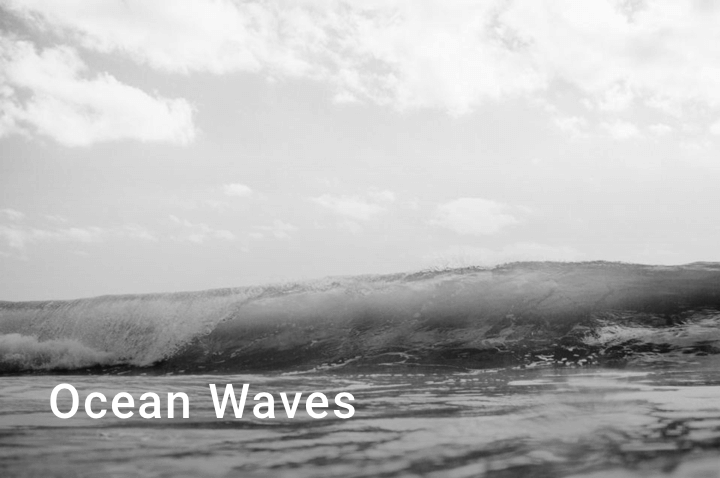
8. Go Grayscale
Alright, this is more of altering the image than the text. But we can still use it to achieve what we want.
By using a grayscale image.
Greyscale image filter
However, remember that greyscale includes colors from the brightest white to the darkest black. These alone, are on the polar ends of vibrancy. Hence you might want to consider toning down the image first. You can do so via a mix and match with any other techniques mentioned here.
For example, here’s a grayscale image with text at the bottom. However, by default this wouldn’t look good. So we add a scrim at the bottom.
Greyscale image with bottom Scrim combined
Notice how the scrim naturally blends very well with the image. The image is greyscale and our scrim is a black to transparent gradient. Hence the two techniques go hand-in-hand, quite well.
9. Playing with color and positioning
Sometimes, no matter what, the image remains the same. Say, for example, a category page will use a constant header image depicting its category.
In such a situation, you know what image to expect. You can use this information to design your text. This can be the font, size, color or even positioning the text.
Universitet Modules by Flatstudio
Notice the smart positioning of text, away from images. Also, the calm pastel background colors are not distracting. Both work in favor of allowing the text to stand out in addition to the graphic.
TL;DR – Use enough contrast
The state of being strikingly different from something else in close association. – Contrast
Did you notice? All the techniques discussed above are ways to increase text contrast. Contrast is what makes an element appear distinct from one another. There should be high contrast between text and image. It allows text to be readable.
There is also no need to sacrifice image visibility for text. Both can coexist together if we use the right technique. For instance, using a scrim allows text to be readable. At the same time, the image is visible as well.
As a general rule, using greyscale colors work well. Which means, white text against a dark background. Or black (dark grey) text against a light background always works best.
Conclusion
We looked at techniques that make text readable, without sacrificing the background image. Techniques such as the scrim are perfect examples of this. Or, using a color overlay can help reinforce your brand by using its primary color. This is especially useful when the image feels out of place in your design. Moreover, the blur technique is useful as well. But you will have to see if it aligns with your design style.
Remember that good design is thoughtful and knows how to balance aesthetic visuals with usability and clarity. It is not enough to let people use your app. It must be easy and pleasing to use.
You can even mix and match two techniques. Your imagination is the limit. Color overlay with scrim anyone?
So which technique are you going to use? Have I missed any popular method? I’d love to hear your thoughts. Let’s talk in the comments below.
One of the highlights in Android O is the ability to use custom font resources. In this article let’s look at using custom fonts in our apps.
Before Android O, how difficult was it to use a custom font in our apps? We had two options:
Write a custom View
Use a library
Both options need considerable effort, for just a simple font. Extending your custom View in EVERY layout.xml, instead of TextView is tedious. Moreover, using a third-party library for something basic as text, can be a risky call.
How many times have you admired a beautiful font, and wanted to use that in your app? But the sheer thought of integrating it, made you feel it’s not worth it? Well, not anymore!
Seeing Android O giving official support to custom fonts brought a big smile to my face. I hope it did to you as well.
Getting Started with Font Resources
Android O supports custom fonts via font resources. The magic lies in the app/res folder.
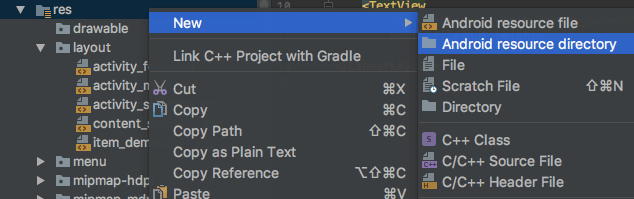
Create new resource directory in Android Studio
Creating the font folder is easy. It is like every other resource such as menu, values, drawable, etc.
So right click the res folder and create a new font folder.
Create a new font resource directory
Now you’re ready to drop in your fonts. So go ahead and pick a font of your choice.
Font Formats
Android O supports both .otf (OpenType) and .ttf (TrueType) font formats.
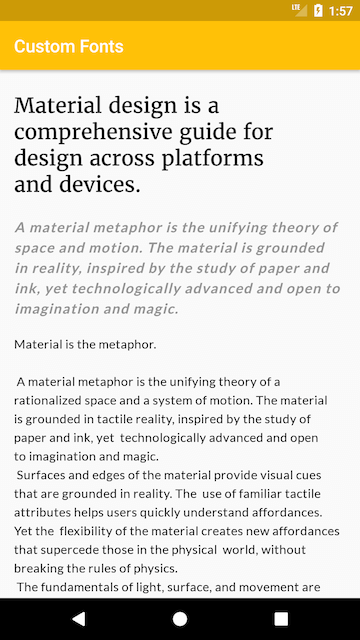
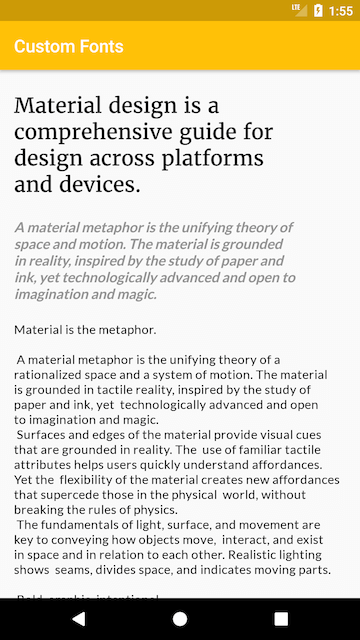
I’m going to create a simple page design. Like a book, where the heading is a large serif font.
What we’ll be creating
Using Custom Font Resources in Android O
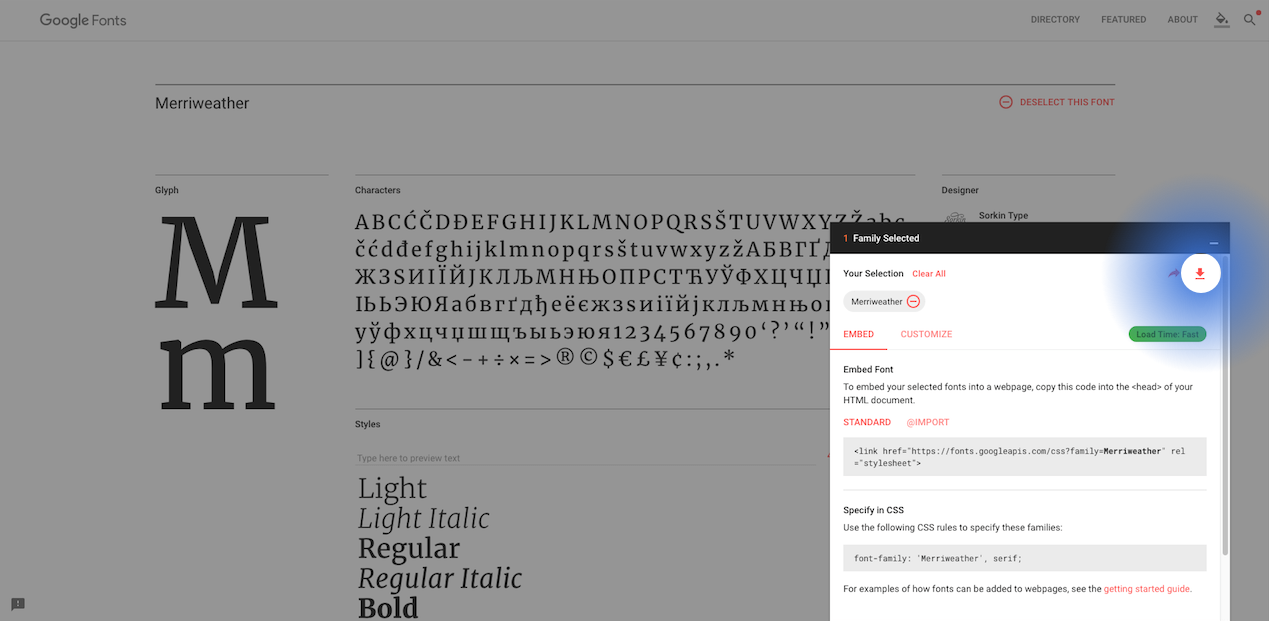
For this Android O tutorial, I’m going to pick my fonts from Google Fonts. They have a great collection, so definitely check that out!
Here are the available font styles for Merriweather. I’m happy with just the regular font so I’ll take that alone.
Download font via fonts.google.com
You can download the .otf or .ttf fonts of your choice and drop them in the res/fonts folder.
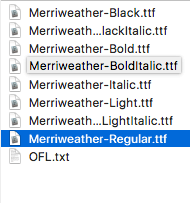
Note: Keep in mind, that resource files should use lowercase alphabets and underscores. For example, the downloaded font was Merriweather-Regular.ttf. When you copy it to the res/fonts folder, rename it to merriweather_regular.ttf.
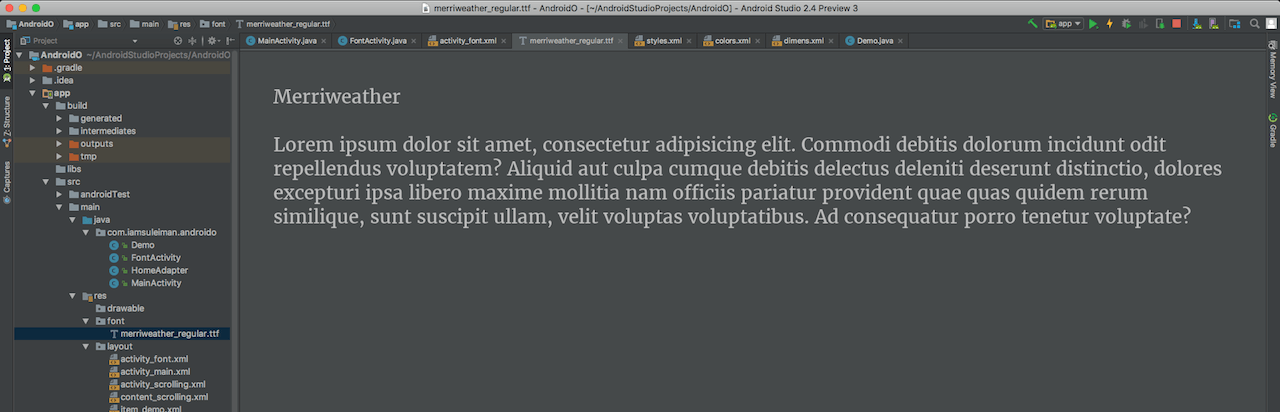
Once you drop in your custom font files in the fonts folder, you can preview your fonts. Simply double-click on a font, and Android Studio previews the typeface. Neat right?
Font Typeface preview
We’re going to need two fonts. One for the heading, and one for the body text. Look closely at the design above. The headline uses a serif font, while the content body is a sans-serif. In other words, the heading will use Merriweather while the content body will use Lato.
Remember, I encourage you to use whatever you like. Feel free to experiment. I’m just using a simple example to show you what’s possible.
Using Custom Fonts via XML
Head over to your XML layout file. Let’s skip the layout design and go straight to using our fonts.
There’s something interesting to note here. If you’re using a font family, you’ll have the same font, with different weight.
You know what I’m talking about. If you download a font and extract the .zip file, you’ll get multiple font variations like this.
So for example, assume I’m using Merriweather-Regular. If Iset the typeface style to bold, Android will choose Merriweather-Bold from my font-family and display that.
Now that I’ve dropped a hint about font family, you might be wondering what exactly it is. So let’s talk about that next.
Using a font family
As we’ve seen above, what if you want to use the same font in its different styles? Alright, maybe you can get away using the default Typeface style of bold or italic. But what if you want a thinner font? Thin and italic?
When you downloaded the .zip file from Google Fonts, did you notice there wasn’t just a single font? There was a multitude of them. All varying in weight or thickness. You can group all these different fonts, and use them together as a font family.
Creating a Font Family
You can do this in 3 easy steps.
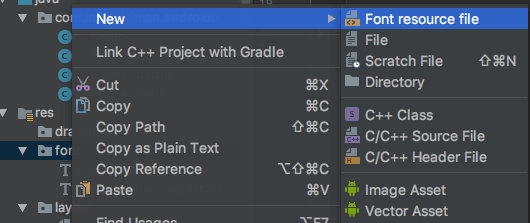
1 Right click the res/fonts folder and create a new ‘Font resource file‘.
Create New Font resource file
2 Add an element for EVERY font variation you wish to include. Let’s go back to the design we’re trying to do. Font styles that are thin, thick and in italics would be nice. So let’s add three.
I only wish to vary fonts for the body content. So let’s add 3 font variations for Lato.
If you’re unsure about the fontWeight, a quick look at Google Fonts will clear your doubts.
After that, using a single font from a font family is the same. Just reference them via the font attribute
android:fontFamily="@font/lato_black"
Just remember to first add all your font variations to the font folder. Then create a ‘Font resource file‘. Then add an element per font variation. Finally, reference your font style just like a regular single font.
Customizing Font Styles for Readability
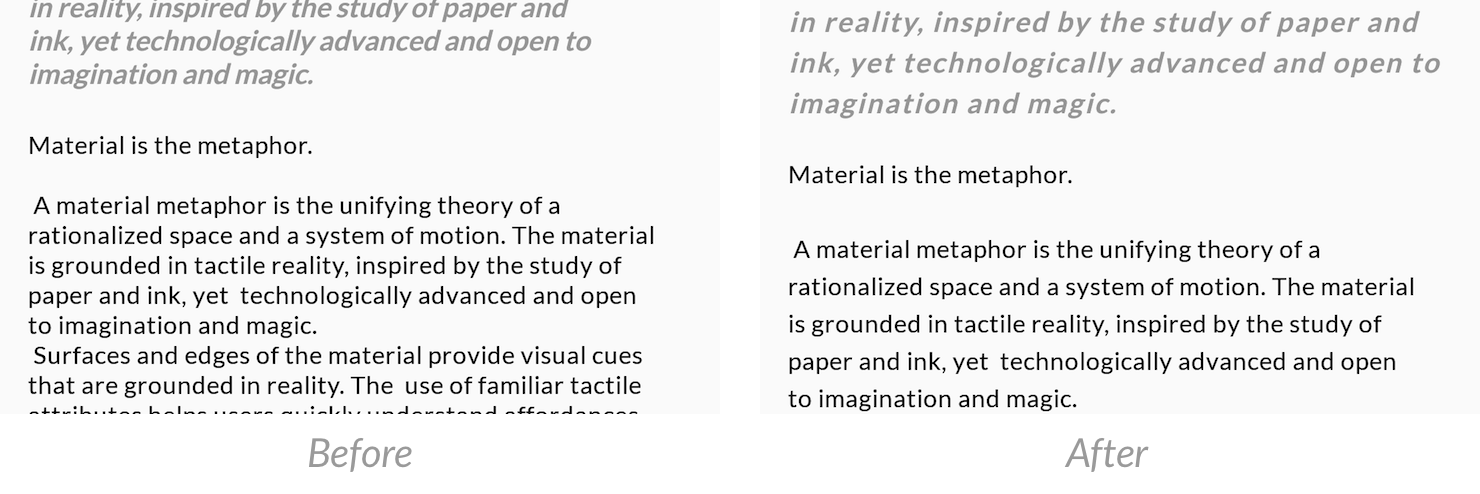
Using the fonts outright on a TextView does not guarantee good readability. Take a look for yourselves.
Default TextView
Seriously, that’s bad. It hardly readable. Keep in mind that a smartphone is a small device, compared to a desktop or tablet. This makes it harder to read the text.
So if your app’s priority is for users to read content. Then its also your priority to make sure the content is easy to read.
The key lies in playing around with two attributes:
letterSpacing
lineSpacingExtra
So with that in mind, here are my TextView elements in the layout.
With these extra attributes, font should now be easy to read. See the difference for yourself. Its better right?
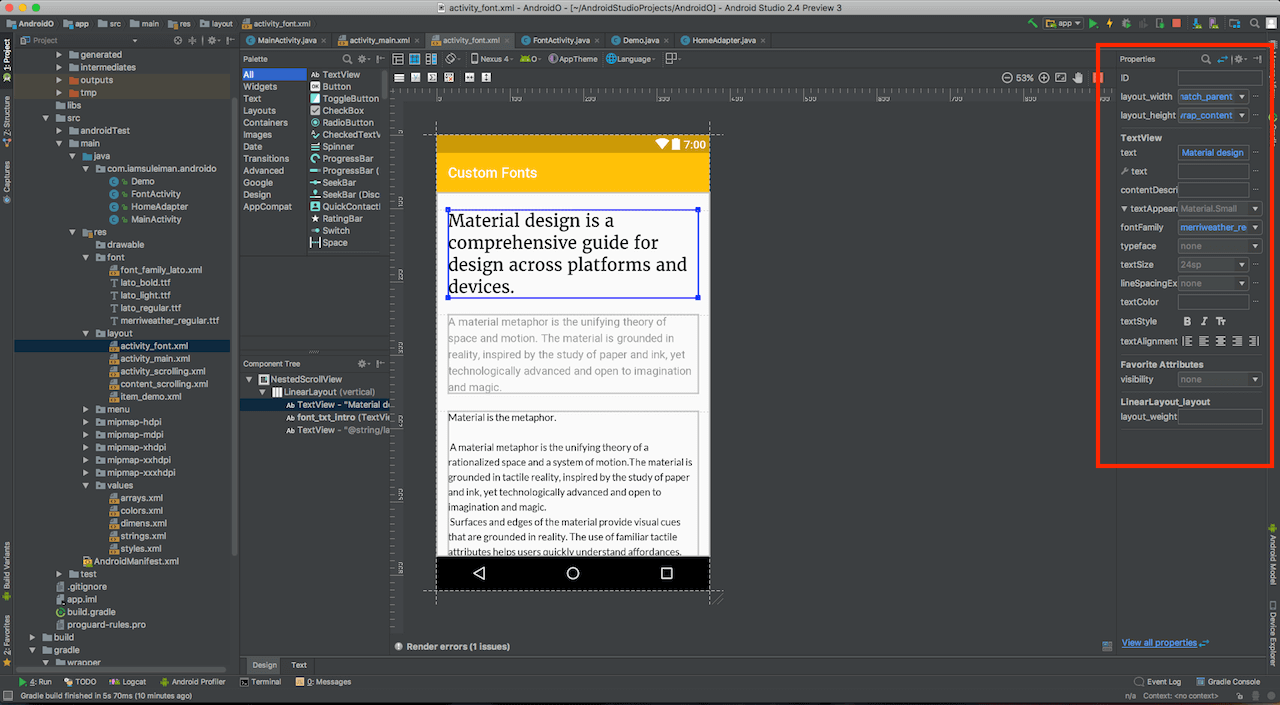
If you have a hard time remembering the different attributes, use the ‘Design‘ Pane in the XML Editor. The ‘Properties‘ pane on the right, lists all available attributes that you can change.
TextView Properties in Design view of XML editor
Final Results
Here’s how the app finally looks like.
What we’ll be creating
Now take a breather here and notice how easily this was. We used 3 different custom fonts without breaking a sweat. Using a font of your choice is as simple as drag and drop! Then, all it took was a single attribute to reference the font file.
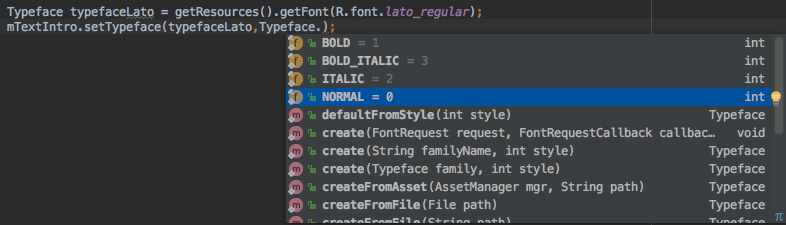
I’ve used merriweather_regular for the large title heading. The following introduction text is like a quote. That uses lato_bold, with Typeface.ITALIC.
While using custom fonts is something basic, its good to know its finally added. Also, it’s relative ease of use makes this feature adoptable by many Android Developers.
So what’s your take on custom fonts? How are you using it? Let me know in the comments.
Also, I’ll be covering other new Android O tutorials in future articles. So don’t forget to subscribe below.
The Android O SDK (API 26) dropped recently and the internet went nuts! The Developer Preview SDKs brought along many new features. But these new SDKs are the pre-final ones.
It’s that time of the year when Android Developers like you and me need to keep up with what’s latest.
I usually refrain from writing about Developer Previews, until a stable release arrives. But it’s better we get to know what’s new now. Rather than coping with changes in the future. So transitioning our apps to Android O will be smooth when the time comes.
I spent my weekend reducing the website’s page size and load time by half. From today, everyone should notice a lighter blog that’s at least 50% faster!
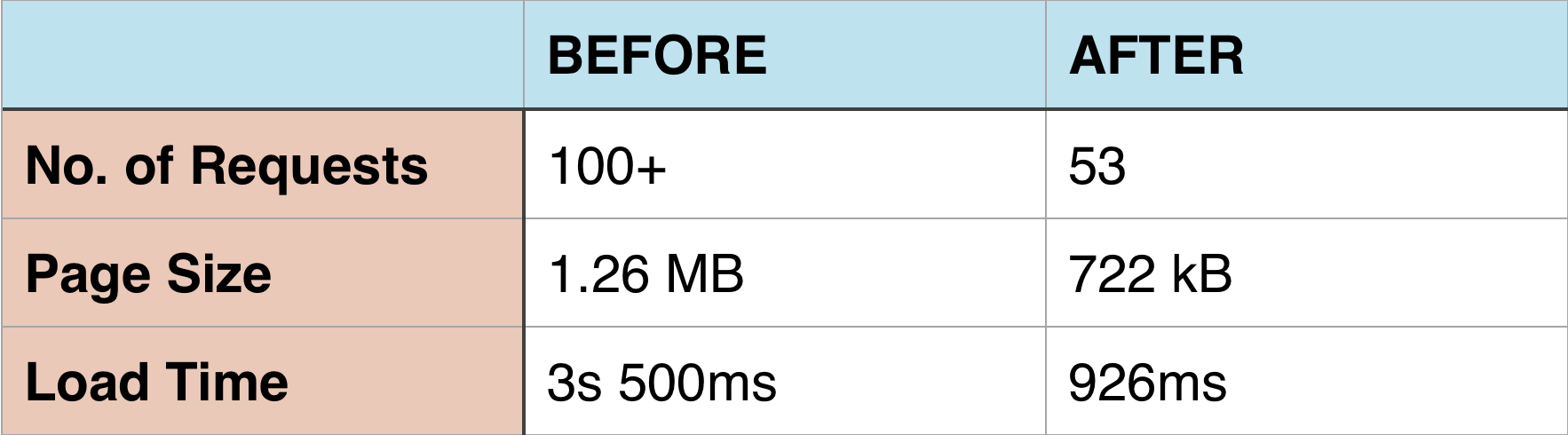
Recently, I noticed the blog was sluggish and making an abnormal amount of requests. Unfortunately I didn’t take a screenshot of the Pingdom tools test BEFORE I started. But the numbers are pretty clear in my head. So it should give you a solid understanding of the difference.
Unlike my typical posts, I’ll keep this one short. Promise.
To top it off, a cached page load making 100+ requests is insane! So I got to cutting down on the bloat. Considering I’m no web developer expert. It took me two days straight! But the results were well worth it. See below for yourselves.
Improvements include:
Preventing unwanted scripts from loading (especially on home page)
Deferred loading of non-priority scripts so they don’t block content
Removed colored code highlighting (a trade- off for a lighter site)
Removed emoji support
Comments section load only after scrolling to end of post
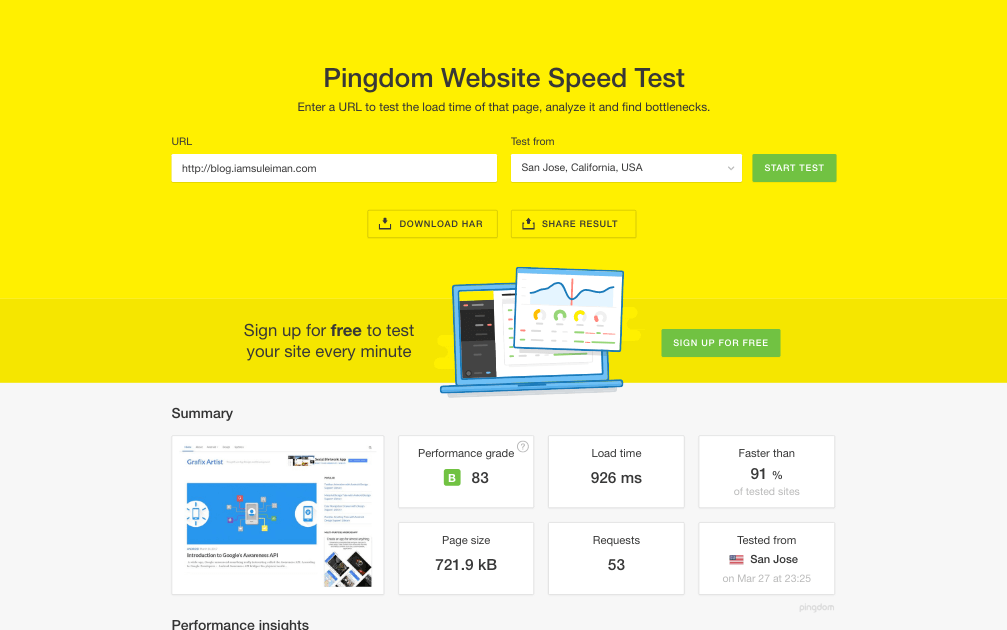
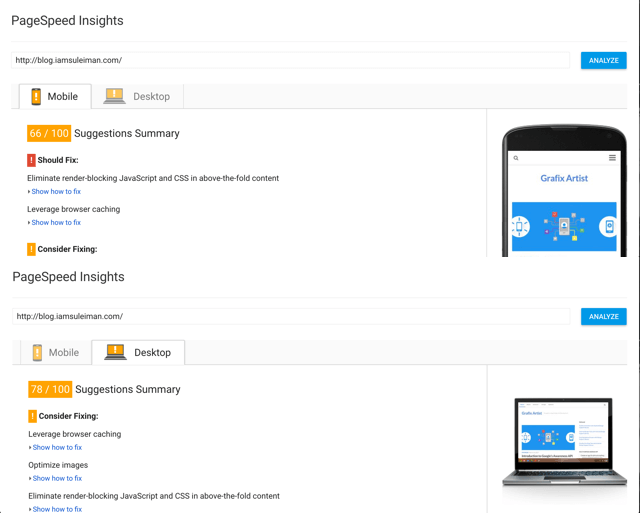
Here the results from Pingdom and Google Page Speed tests.
Pingdom test
Google PageSpeed results
As you can see, these are tremendous improvements. The number of requests on the homepage are almost halved! Even the page size is greatly reduced. Of course the post pages are higher because of the images. But the page has been optimized to prioritize content first. So you can notice better load times there too.
However, the move wasn’t easy or smooth. For example removing code highlighting was a big deal! It greatly boosted page load which could not be ignored.
Over to you
I hope all these improvements gave you a faster blog. How are your load times? Are the improvements visible?
Optimization is an ongoing process. If you have any ideas, tips or suggestions, send me a Tweet. I’d love to hear from you.
This is my first note on the blog. Also perhaps the most important one. Grafix Artist’s domain is changed. blog.grafixartist.com is now blog.iamsuleiman.com.
Just wanted to give you guys a quick heads up. Im trying to make this transition smooth from my end.
So if you happen to find any 404s or anything. Just let me know?
Android Bottom Bar (Bottom Navigation View) was officially added in Design Support Library v25. Bottom Bar was first introduced in the Material Design guidelines.
Initially, it was met with some reception. People had polarizing opinions on it. Even I, was on the negative spectrum of thought.The fact that it had existed on iOS for so long, now felt like a poor rip-off for Android.
But irrespective of our opinions, Bottom Navigation is here to stay. It is now officially supported in Android’s Design Support Library, as of version 25.0.0.
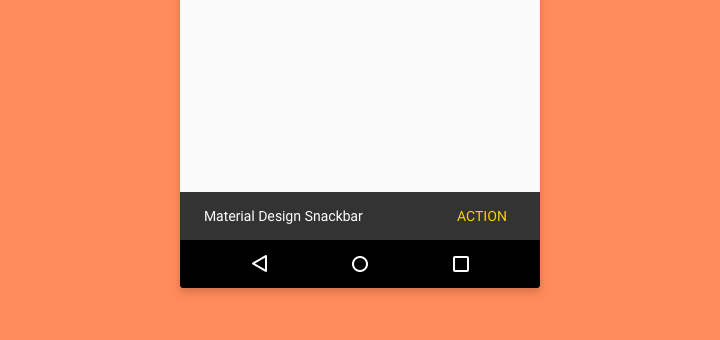
A lightweight component that gives feedback to users. It optionally provides an action to users.
Behavior
Snackbars are displayed at the bottom of the screen. It stays there for the specified interval. Or, you can dismiss it by swiping.
However, there arises a confusion with our ‘ol pal, the Toast.
Snackbar VS Toast Confusion
The addition of a Snackbar created ambiguity. When do we use it and when to use Toast?
Its important that we know what to use when. So before moving on to actual code implementation, let’s clear the confusion.
The Difference
Snackbar
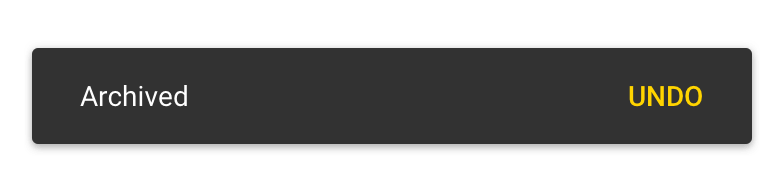
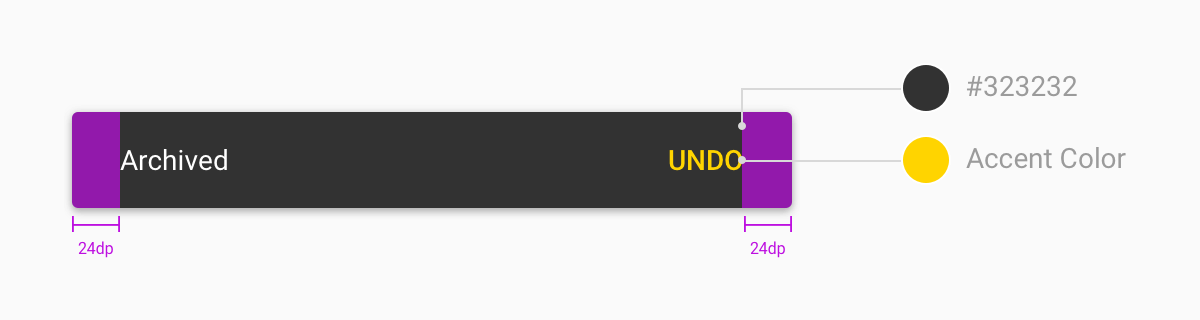
Contain a single line of text directly related to the operation performed. They may contain a text action, but no icons.
Lightweight feedback about an operation
Optionally includes a single action
Can optionally stay on-screen permanently, until swiped off screen
Toast
A simple Toast
Primarily used for system messaging. They also display at the bottom of the screen, but may not be swiped off-screen.
System-level messaging
No user action can be performed
Can only stay on screen temporarily. Cannot be swiped
Moving forward
Now that we’re clear about difference between the two, we can start implementing.
First, we’ll look at using a simple usage, right off the bat. Next I’ll tell you how to include a primary action. Then we’ll learn how to style it. Finally, we’ll go over its do’s and don’ts.
Usage
Displaying is relatively simple. In fact, it is similar to how you would write a Toast. We use the class android.support.design.widget.Snackbar .
The view (1st parameter) doesn’t have to be your parent layout. It can be any View.
TIP Ideally, Snackbar works best if your parent layout is a CoordinatorLayout. This ensures that it plays nice with other UI elements (such as FAB). More on that later.
Next, the duration for displaying (3rd parameter), can be any of the following:
LENGTH_INDEFINITE
LENGTH_LONG
LENGTH_SHORT
I hope the duration types above are self-explanatory.
LENGTH_INDEFINITE will show the Snackbar for and indefinite period of time. But you can dismiss it by swiping.
Finally, don’t forget to call Snackbar.show() .
NOTE For Snackbar to work, your Activity must inherit from (extend) AppCompatActivity. Otherwise, consider a third-party alternative.
Adding a Primary Action
As stated in the Material Design spec, we can optionally include an action.
Adding a user action is relatively simple. Simply modify your existing call as follows.
Snackbar
    .make(view, "Your message here",
                Snackbar.LENGTH_SHORT)
    .setAction("YourAction", new View.OnClickListener() {
                    @Override
                    public void onClick(View v) {
                        // TODO: Your Action
                    }
                });
    .show()
Ideal use-cases for a primary action include:
UNDO – for deleted message, archive, etc
CONNECT – to enable internet if disconnected
RETRY – an action that failed (e.g. API call)
NOTE Do not include an action for DISMISS. This is of no use. Just auto-dismiss your Snackbar by setting a short duration. Or it can simply be swiped away.
Styling
Default properties
The Snackbar class follows the Builder pattern which allows for easy styling.
To style properties such as text colors, you’ll have to fetch the View first.
View snackbarView = snackbar.getView();
Then get the TextView from it.
TextView textView = (TextView) snackbarView.findViewById(
       android.support.design.R.id.snackbar_text);

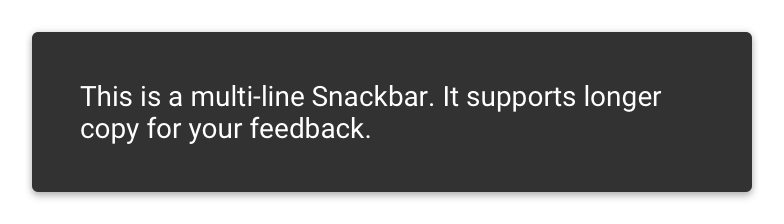
// For multi-line text, limit max line count.
textView.setMaxLines(3);

 // Snackbar text color (not action button)
 textView.setTextColor(yourColor);
Background color
First, you’ll need a reference. Then apply all your style properties and finally call snackbar.show().
snackbarView.setBackgroundColor(yourColor);
Playing nice with Floating Action Button
Have you seen this behavior before?
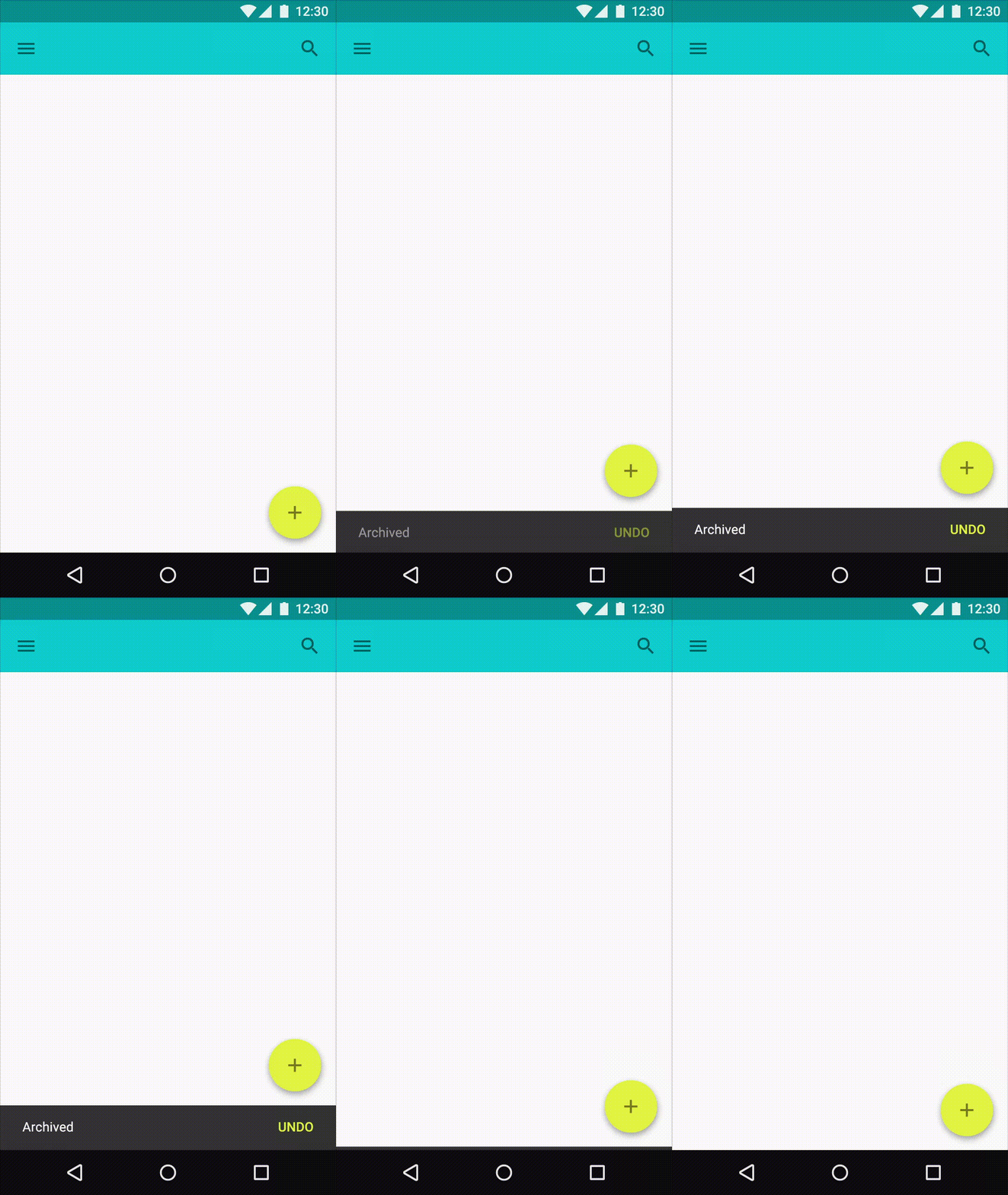
The FAB translates up, giving space for the Snackbar to rise from the bottom.
This is the ideal, recommended behavior. Because the last thing we want is the FAB overlap!
So to avoid that, just keep one thing in mind.
Your parent layout (root layout) must be a CoordinatorLayout. It ensures that the correct Behavior is applied to its child Views. In other words, it ensures that UI elements ‘behave’ or ‘coordinate’ correctly.
Here’s an example of how such an XML layout would look like.
Create a CustomSnackbar final class that extends BaseTransientBottomBar.
Next, create an inner, static class ContentViewCallback. Implement the BaseTransientBottomBar.ContentViewCallback interface.
public class CustomSnackbar
        extends BaseTransientBottomBar<CustomSnackbar> {

    ...

     private static class ContentViewCallback
            implements BaseTransientBottomBar.ContentViewCallback {

     // view inflated from custom layout
        private View view;

        public ContentViewCallback(View view) {
            this.view = view;
        }

        @Override
        public void animateContentIn(int delay, int duration) {
            // TODO: handle enter animation
        }

        @Override
        public void animateContentOut(int delay, int duration) {
            // TODO: handle exit animation
        }
    }
   ...
}
Now, our main layout is inflated and taken care of. Next is handling the TextView and action Button.
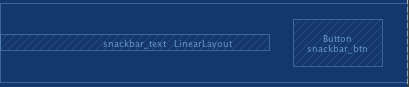
But keep in mind that a typical Snackbar has this. Moreover, since my custom layout has a Text and Button too, I’m adding functionality to it.
So if you don’t have either of those Views, then skip ahead to point 4.
3. Inflate Custom View
Create a static method make(ViewGroup parent, int duration), similar to the original Snackbar.make() method.
Here, we will inflate our custom layout, using the parent ViewGroup.
public static CustomSnackbar make(ViewGroup parent, int duration) {
       // inflate custom layout
       LayoutInflater inflater = LayoutInflater.from(parent.getContext());
       View view = inflater.inflate(R.layout.custom_snackbar, parent, false);

       // create with custom view
       ContentViewCallback callback= new ContentViewCallback(view);
       CustomSnackbar customSnackbar = new CustomSnackbar(parent, view, callback);


       customSnackbar.setDuration(duration);

       return customSnackbar;
   }
4. Display it
Finally, you can display your CustomSnackbar, just like you would with a regular Snackbar.
CustomSnackbar customSnackbar = CustomSnackbar.make(rootView, CustomSnackbar.LENGTH_SHORT);
       customSnackbar.setText("Your message here");
       customSnackbar.setAction("Action", new View.OnClickListener() {
           @Override
           public void onClick(View v) {
               // TODO: handle click here
           }
       });
       customSnackbar.show();
CustomSnackbar.java
Here’s the complete code for the CustomSnackbar class.
public final class CustomSnackbar
        extends BaseTransientBottomBar<CustomSnackbar> {


    protected CustomSnackbar(@NonNull ViewGroup parent, @NonNull View content, @NonNull ContentViewCallback contentViewCallback) {
        super(parent, content, contentViewCallback);
    }

    public static CustomSnackbar make(ViewGroup parent, int duration) {
        // inflate custom layout
        LayoutInflater inflater = LayoutInflater.from(parent.getContext());
        View view = inflater.inflate(R.layout.custom_snackbar, parent, false);

        // create with custom view
        ContentViewCallback callback= new ContentViewCallback(view);
        CustomSnackbar customSnackbar = new CustomSnackbar(parent, view, callback);
        customSnackbar.setDuration(duration);

        return customSnackbar;
    }


    private static class ContentViewCallback
            implements BaseTransientBottomBar.ContentViewCallback {

        // view inflated from custom layout
        private View view;

        public ContentViewCallback(View view) {this.view = view;}

        @Override
        public void animateContentIn(int delay, int duration) {// TODO: handle enter animation}

        @Override
        public void animateContentOut(int delay, int duration) {// TODO: handle exit animation}
    }
}
Do’s and Don’ts
Knowing how to use Snackbar is essential. But knowing when to use it is important as well. So before we call this a wrap, let’s look at some do’s and don’ts.
Do
keep the text content short
Allow undoable actions to be undone (delete, archive, etc.)
display feedback results for user actions
style it to match your design
Don’t
include icons
perform core functionality via the action button
display multiple instances
display important system information or errors
overlap or block the FAB (Floating Action Button)
animate or reposition
Conclusion
The Snackbar is comparatively a tiny component in the Material Design spec. Hence it is easily prone to misunderstanding and misuse.
Giving users feedback is important. Effectively using it is key to your app.
Quick Recap
First, we clarified the difference between a Snackbar and Toast. Then we even discussed when to use what.
Next, we looked into using a simple implementation and went onto adding actions. From there, we looked into styling and customization options.
Additionally, we saw that even a custom layout can be used. Finally, we reinforced key guidelines.
Where to from here?
This is just one of the many new additions to Material Design.
The Design Support Library is making life easy for Android Developers to use Material Design. Are you using it?